
ATS for Resume: What It Is and How to Write for It
ATS stands for applicant tracking system. See how the software reads a resume, how to format and word yours, and how to read a checker score.
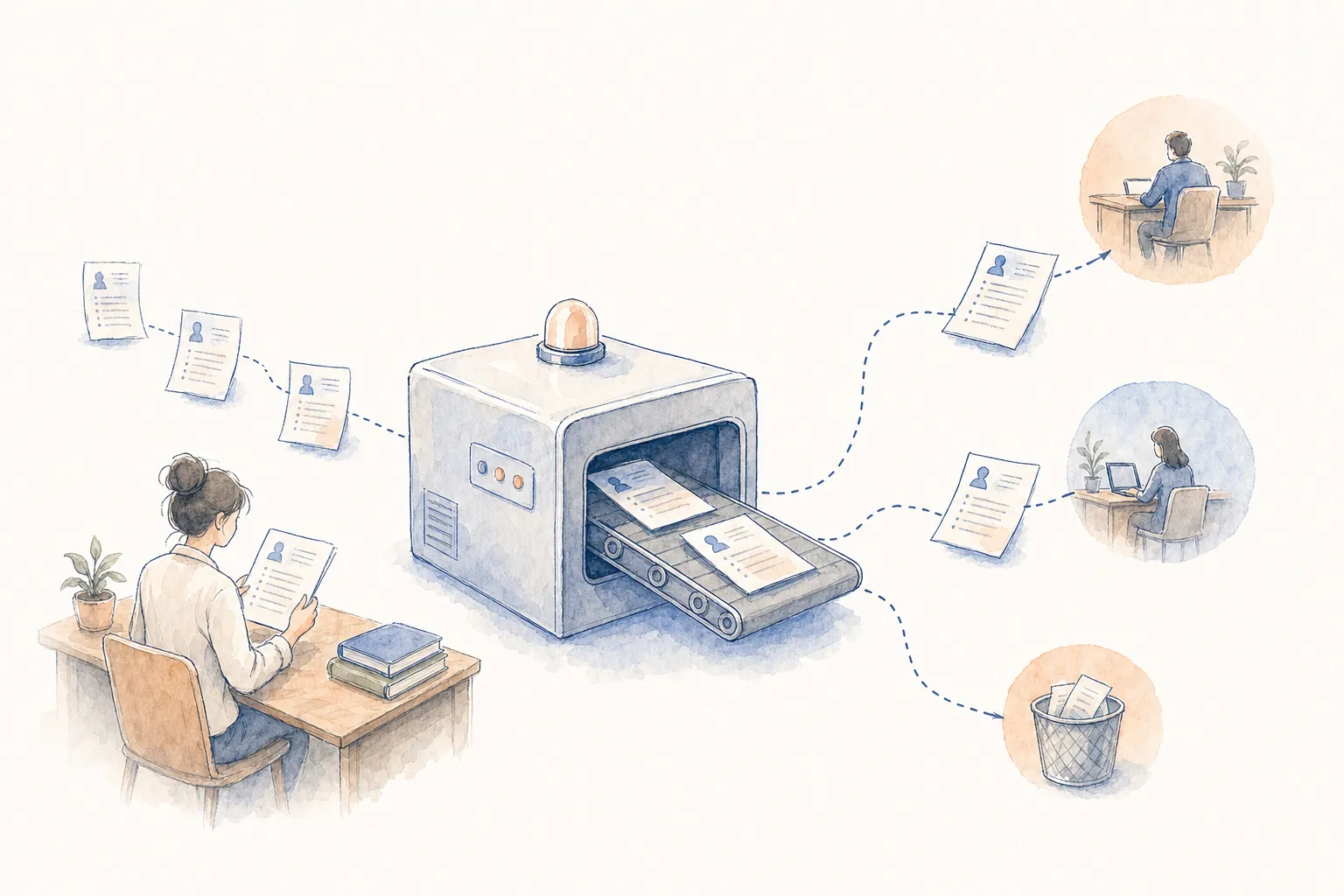
ATS stands for applicant tracking system, the software companies use to collect and screen applications. Applicant tracking systems are designed to extract structured information from resumes, including names, job titles, employment histories, skills, education, and other candidate data. Write a resume that software can read cleanly and that a person wants to keep reading. This guide covers what the software does, how to format a resume for it, how to choose keywords, and how to read a checker score.
What an ATS does with a resume
Applications come in, resumes get parsed, candidates advance through stages, and compliance reports generate automatically. Resume parsing extracts candidate data from resumes into structured profiles automatically. Resume Worded explains that an applicant tracking system converts the file to plain text and works from that (Verified 2026-11-13). Resume Worded also says most systems don’t delete resumes; they parse each one into a database that recruiters search, filter and rank (Verified 2026-11-13). Resume Worded warns that if your resume parses badly, it stops appearing in those searches (Verified 2026-11-13).
Jobscan says most companies, including 99% of Fortune 500, use Applicant Tracking Systems (ATS) to process your resume (Verified 2026-11-13). Jobscan adds that job seekers who submit their resume and job application through an online form are interacting with an ATS (Verified 2026-11-13).
Plan the resume for the software and for the recruiter who searches it. Ask a simple question about each line: can plain text carry this, and would a recruiter search for it? Prepare the file as if a parser will read it before a person does.
The employer side of an ATS
Look at the system from the buyer’s seat for a moment. On the employer side, 94% of hiring managers say using an ATS has improved their hiring process. The average cost of an applicant tracking system is about $250 per month for many small business plans, or about $5 to $7 per employee. The global applicant tracking market hit $3.28 billion in 2025 and is projected to reach $4.88 billion by 2030, growing at 8.2% annually. ATS programs fall into five types. Only 28% of companies were satisfied with their past ATS decisions.
Applicant tracking systems differ in their parsing technologies, configurations, integrations, and document-processing capabilities. A parsing accuracy rate below 85%, which is where most commodity parsers sit, means recruiters will spend time correcting information.
Expect small differences in how each employer’s system reads the same file. Build the resume for the plainest reader in the group. Keep the layout simple enough that a low-accuracy parser can still place the text in the right fields. Do not assume that a file which read well at a past employer will read the same way at the next. Check the file again whenever you change the template.
How to format a resume for an ATS
Formatting that works for a human reader may not always translate cleanly into machine-readable information. Visual elements such as tables, text boxes, graphics, and unconventional layouts can create problems for automated recruiting software. Better text does not necessarily solve structural problems. The document still needs to work within the recruiting systems processing it. Fix the structure before you polish the wording.
Follow these 10 format steps:
- Use a single-column layout with text that runs from top to bottom.
- Put your name, email, phone and location in the body of the page, not in a header or footer.
- Label sections with standard headings such as Work Experience, Education and Skills.
- Choose a standard font such as Arial, Calibri or Garamond.
- Leave out photos, charts, skill bars, icons and text boxes.
- Replace tables with plain lines of text, and use tabs or alignment to line things up.
- List roles in reverse chronological order, with the newest role at the top.
- Give a start date and an end date for each role, and write dates in the same format throughout.
- Describe a skill level in words, not in a graphic.
- Save a typed document, never a scan or a photo of a printed page.
Choose the file type with care. Jobscan recommends uploading your resume in the .docx (Microsoft Word) format when applying to a job, unless the job posting requests a PDF (Verified 2026-11-13). Resume Worded tells readers to always use PDF unless specified (Verified 2026-11-13). Check the posting for the file type it asks for, and follow that instruction. Keep both a DOCX and a text-based PDF ready when the posting names no file type. Open the PDF and try to select the text with a cursor. Paste that text into a plain text editor and read it top to bottom. Rework any section that comes out in the wrong order.
How to handle keywords for an ATS
Modern talent acquisition platforms are moving beyond keyword matching toward semantic search, candidate ranking, skills inference, automated screening, and generative AI-assisted recruitment. Structure, readability, terminology, and machine compatibility increasingly influence how professional experience moves through a digital hiring pipeline. Jobscan bases its match rate on five priorities, in order: hard skills, education level, job title, soft skills and other keywords (Verified 2026-11-13). Jobscan itself warns that there is such a thing as an over-optimized resume (Verified 2026-11-13).
Write keywords the way a careful person would, not the way a list would. Follow these steps for each posting:
- Read the posting and mark the skills, tools and job title that it repeats.
- Use the posting’s own wording for a skill when that wording truthfully describes your experience.
- Write both the long form and the acronym of a term.
- Place keywords inside bullet points that describe real work, and keep the skills section as a short index.
- Match the job title in the posting where your own title means the same thing.
- Add the degree or certification by its full name when the posting asks for it.
- Skip any keyword that you could not explain in an interview.
- Read the resume out loud, and cut terms that sound forced.
Keep one base resume with a fixed format. Adjust the keywords and the top bullet points for each posting. Save each version under a clear file name so the right file goes to the right employer.
Writing for the recruiter behind the ATS
Enhancv describes ATS as just the first step of the recruitment process (Verified 2026-11-13). Enhancv notes that although an ATS doesn’t look for spelling mistakes and poorly crafted content, recruitment managers certainly do (Verified 2026-11-13).
Give the human reader the same care as the parser:
- Open each bullet point with an action verb.
- State what changed as a result of the work, with a real figure where you have it.
- Keep bullet points short enough to scan.
- Cut filler phrases and repeated verbs.
- Use the same verb tense for past roles.
- Trim older roles to their strongest points.
- Check spelling and grammar, then ask another person to proofread.
- Make sure the resume and any public profile tell the same story.
How to use an ATS resume checker
An ATS resume checker is an online tool that analyzes your resume the way applicant tracking systems do, then scores it. Checker scores are estimates, not predictions. A resume ATS score is a directional signal, not a verdict. Two checkers will score the same resume differently. Scores don’t transfer between postings. A higher score removes a reason to filter you out, but it doesn’t add a reason to call you back. Older checkers score keyword overlap against one pasted job description. A checker diagnoses score, gaps and parsing problems, while a tailoring tool rewrites your resume to match a specific posting.
Compare what the vendors say about their own scales. Enhancv states that there’s no such thing as an ATS score (Verified 2026-11-13). Enhancv says its tool checks for 27 crucial things across seven different categories on your resume (Verified 2026-11-13). Jobscan recommends a match rate score of 75% (Verified 2026-11-13). Resume Worded says a good score is 85 or above, and ideally 90 or above (Verified 2026-11-13). Resume Worded says its scanner runs 30+ checks on every resume (Verified 2026-11-13). Kickresume’s ATS Checker performs over 20+ different checks, covering things like formatting, structure, and missing keywords (Verified 2026-11-13).
Use a checker this way:
- Run a check after you build or heavily revise a resume.
- Read the extracted text when the checker shows it, and confirm that names, dates and job titles landed in the right order.
- Fix the flagged parsing items before anything else.
- Scan again to confirm that the fix worked.
- Compare scores only within the same tool.
- Stop polishing once the flagged items are cleared.
- Do not pay only to learn why a score is low.
- Spend the time you save on applications that fit your background.
If you only need resume tools, Enhancv, Jobscan or Resume Worded is a fine choice.
Where a job search tool fits
Decide which gap you have before you pick a tool: a file that software cannot read, or a list of roles that do not fit your background. Use a checker for the reading gap. Look at a wider job search tool when the fit gap is the bigger one.
RoleNavigator is a job search tool that finds jobs that fit your resume, scores them against it, and writes your resume and cover letter like you would, not like AI. RoleNavigator grades your résumé and improves it, and then you decide whether to keep the result. In RoleNavigator’s document templates, the default layout is built to be read by hiring software.
For more options, see the comparison of AI job search tools. For a side by side view, see the RoleNavigator and Jobscan comparison. Pick the tool that matches your gap, and stop adding tools once that gap is closed.
A short checklist before you apply
Work through these checks before you send an application:
- Confirm that the layout is a single column of typed text.
- Confirm that contact details sit in the body of the page.
- Confirm that section headings use standard names.
- Confirm that roles run from newest to oldest, each with dates.
- Confirm that the file type matches what the posting asks for.
- Confirm that the posting’s main skills and job title appear in your own true wording.
- Paste the file’s text into a plain editor and read it in order.
- Run a checker and clear the flagged parsing items.
- Read the resume once as a recruiter would, starting with the work experience section.
Treat the software as the path to a reader, not as the reader. Keep the format fixed, tailor the wording to the posting, and let the score guide you without ruling you. Return to this checklist each time you change the template or target a new kind of role.
Keep reading
More RoleNavigator guides